

-
Articles

- Form Items
Shared Google Forms
- Details
- Jackie Riddel
Located at Drive.google.com > Client Documents > By Year > by SiteCode
Make sure form colors match the site colors
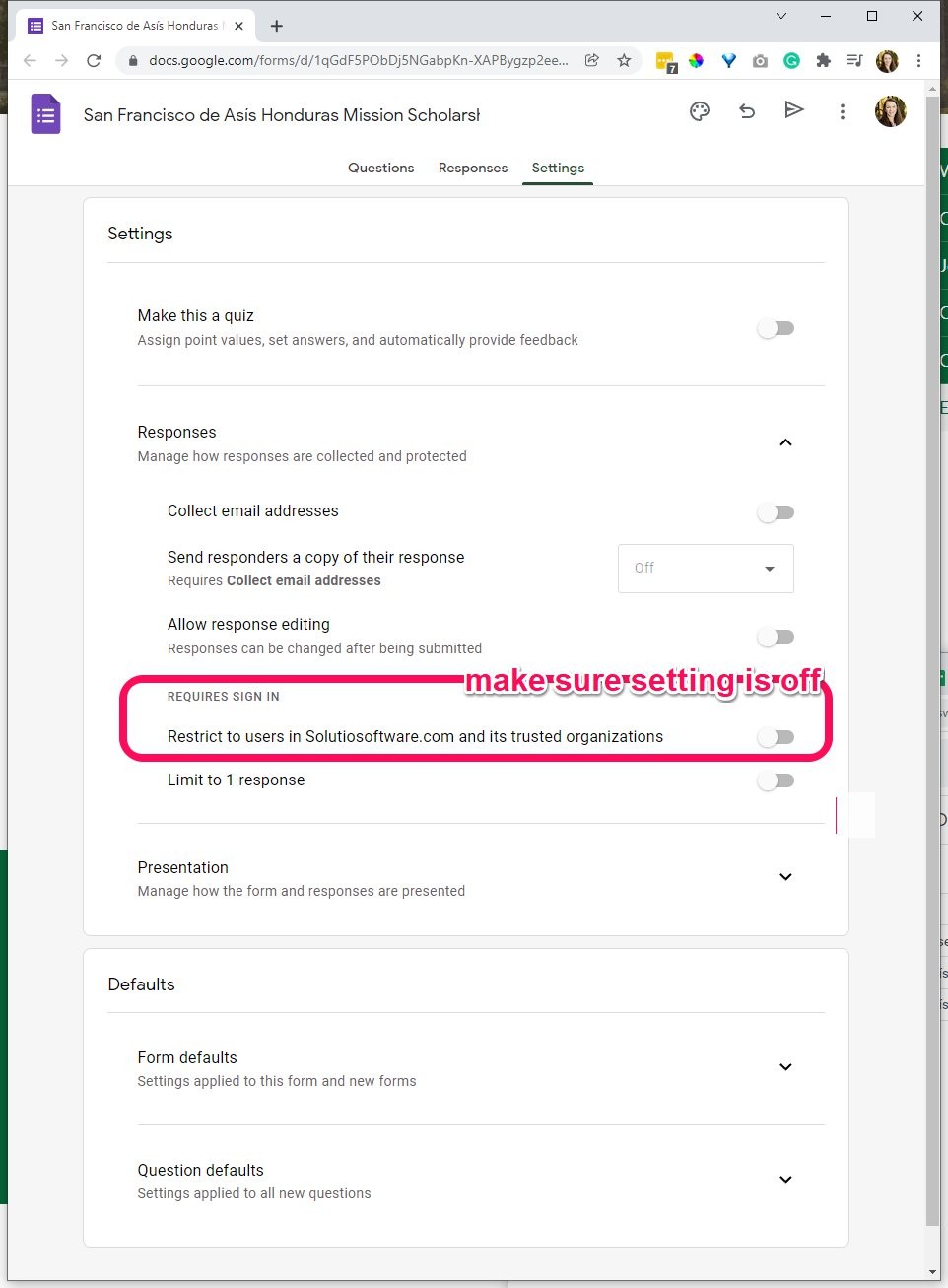
Make sure accessible to users outside of solutiosoftware.com (see setting in screenshot below)
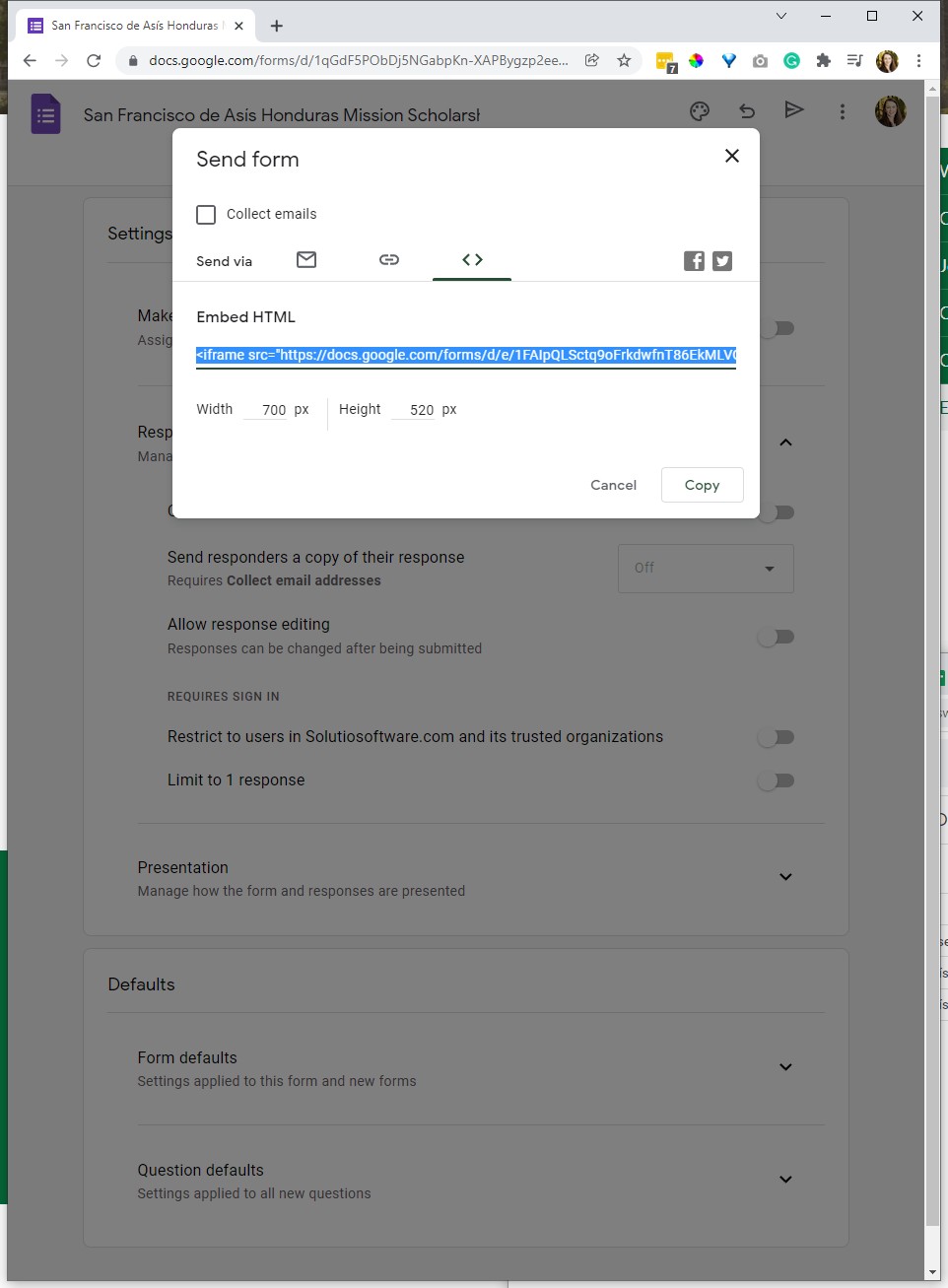
Get embed code from
Jotform Notifications
- Details
- Al Jirak
To make sure that people are able to login to JotForm as well as get notifications, make sure to setup a filter so that emails will go on to their personal address.
Our forms are setup like forms104@. These are all aliases for forms100@. So when JotForm sends an email to forms104@ it forwards to forms100@. What we want is an email that goes to their JotForm email account (i.e. forms104@) and have it forward to their personal address that they have access to (i.e. This email address is being protected from spambots. You need JavaScript enabled to view it.)
Example:
Anything emailed to This email address is being protected from spambots. You need JavaScript enabled to view it. forwards to This email address is being protected from spambots. You need JavaScript enabled to view it.
To accomplish this you need to follow several steps:
- Login to forms100@
- Go into settings and create a new Forwarding Address (like This email address is being protected from spambots. You need JavaScript enabled to view it. or whatever their email is). You will need a verification code from them to finish adding them as a Forwarding Address
**You can only have 20 forwarding addresses, at that point you will have to create a new address (like forms200@) - Do a search for emails to their JotForm email account. For example:
to:This email address is being protected from spambots. You need JavaScript enabled to view it. - Setup a filter for that search and tell the filter to "Skip the Inbox" and forward to their personal address.