


The Grid Layout is made up of two main parts: Page Content and a Joomla Articles Particle. The Joomla Articles Particle pulls articles from a selected category and displays them in a styled grid layout.
The Page Content should point to a Single Article that has the same title as the page. This article does not need any content unless a Leading Article has been requested. Its primary purpose is to display the page title and allow space for optional introductory information.
The Joomla Articles Particle Module should be set to pull from the category created for the Grid Layout. This module must be placed in the position CONTENT-BOTTOM-A, which ensures the grid appears below the page content.
If the grid needs to link to specific menu items instead of articles within a category, use the particle type Block Content instead of Joomla Articles.
Every category used in a grid must also have a display menu item created in either the secondary-menu or the hidden-menu. This menu item provides a landing page for the articles in that category, allowing them to display correctly when selected from the grid.
Grid Layout Setup
- To begin creating the new Grid Layouts you will need to check to see if the Grid Outline has been created. It should look like this:
Once you are sure the Grid Outline is correct you can begin building the Grid Pages.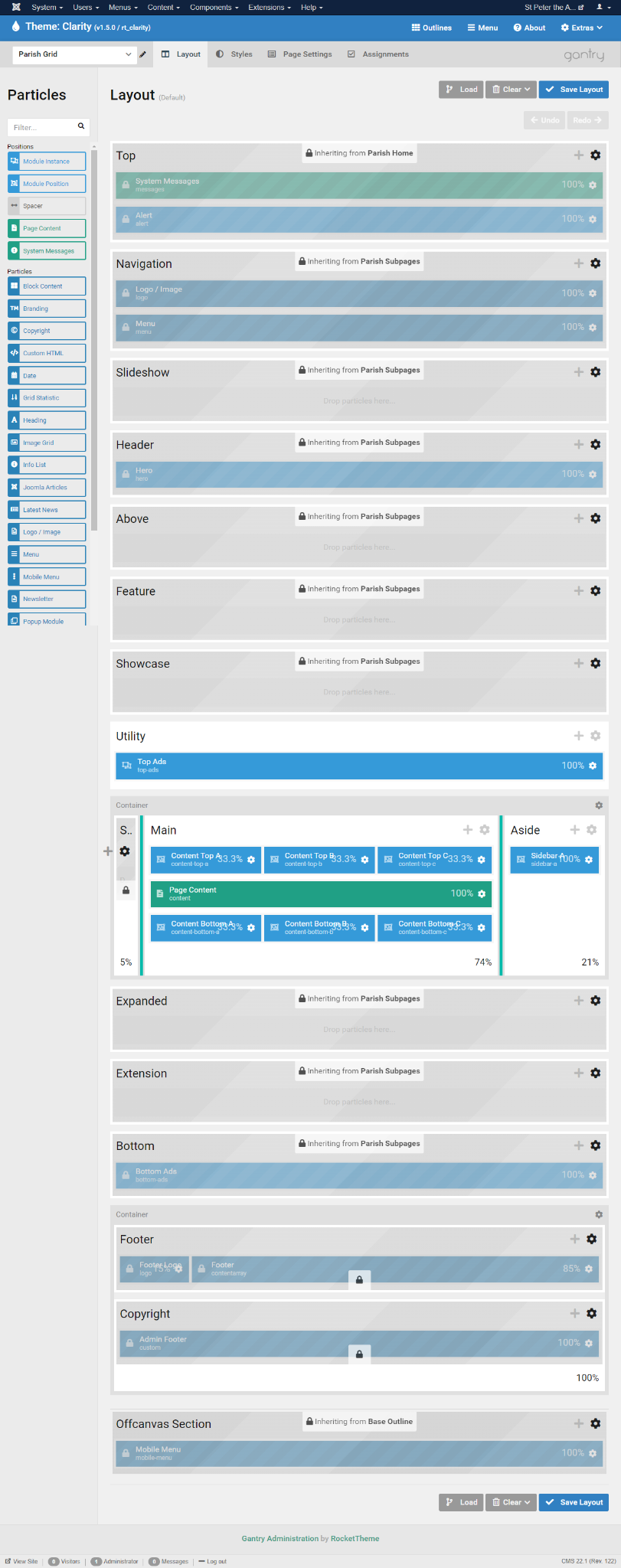
- Go to the Module Manager and create a "Gantry 5 Particle"
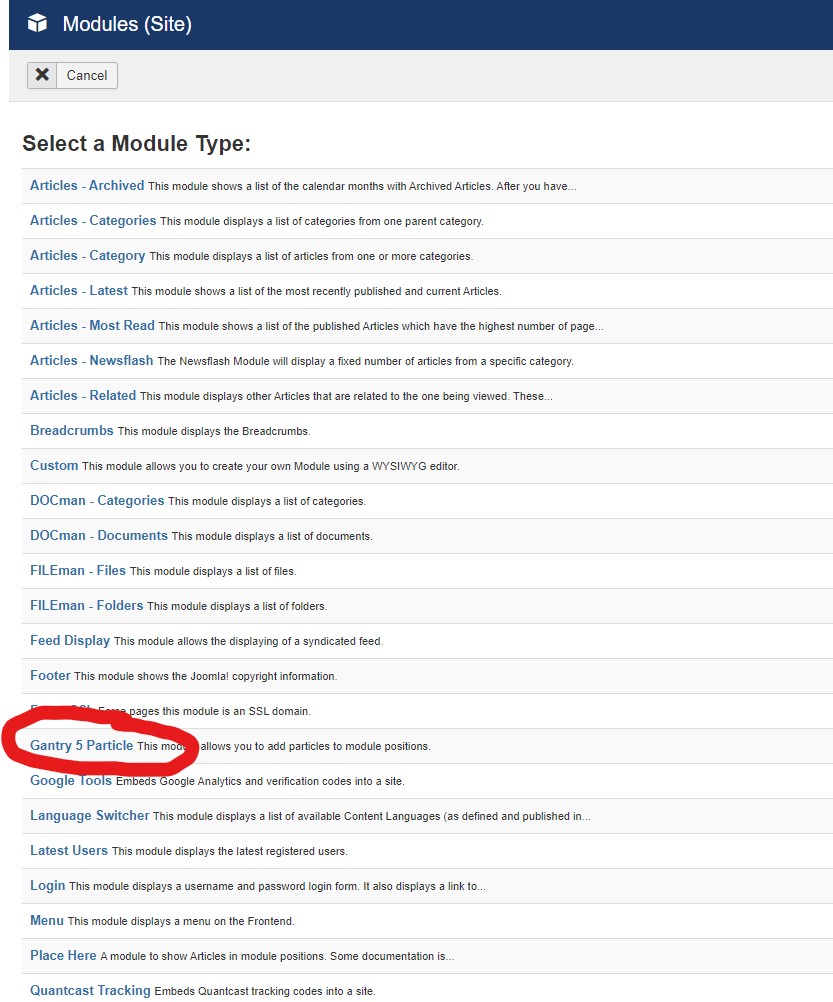
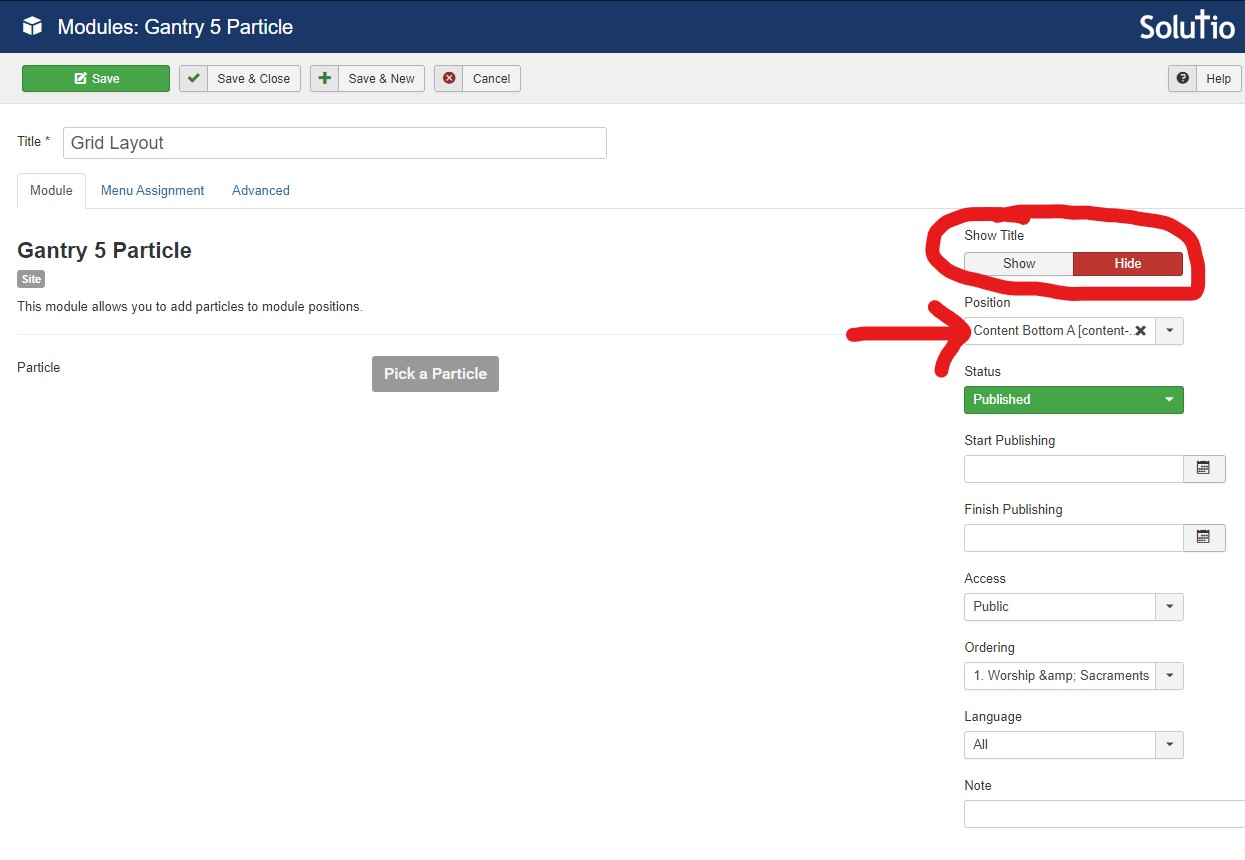
- Under the "Module" settings tab give the Module a Title that describes the category being shown and set the "Show Title" setting to "HIDE" and the "Position" setting to "CONTENT-BOTTOM-A".
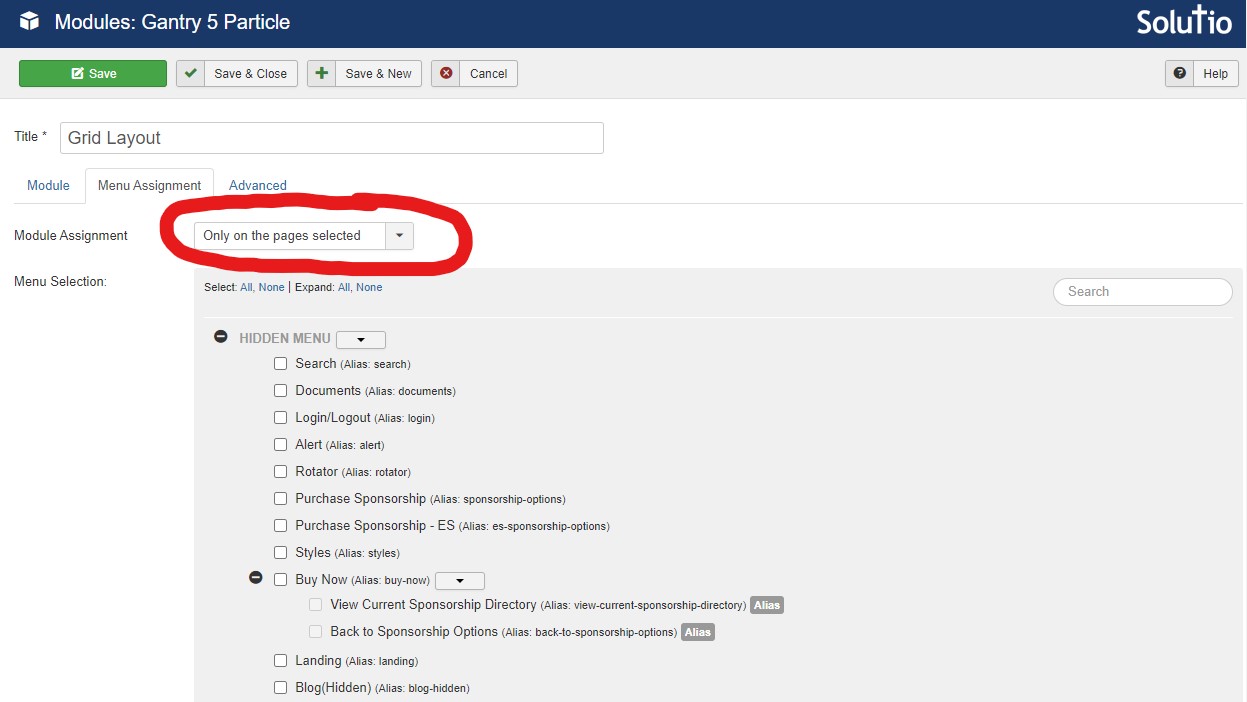
- Under the "Menu Assignment" settings tab in the dropdown select "Only on the pages selected" setting and select "none" near the top. Then go find the "Menu Item" that you are wanting this grid to be on and select it.
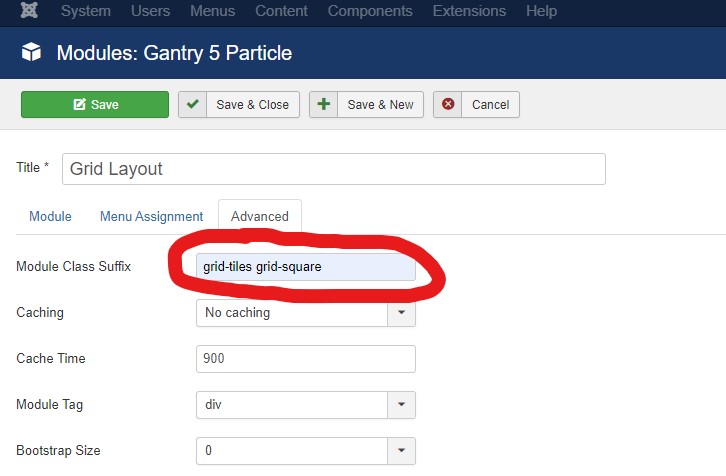
- Under the "Advanced" settings tab place the classes that correspond to the "Grid Layout" style that you have selected from the STYLES site in the "Module Class Suffix" box. (In this example the classes being used are "grid-tiles" and "grid-square" and "grid-tiles-mobile"
- Back under the "Module" settings tab click into the "Edit Particle" / "Pick a Particle" button.
- For a Category full of Articles "Grid Layout" select the "Joomla Articles" Particle.
- For a Grid of Links that lead to other "Menu Items" select the "Block Content" Particle.
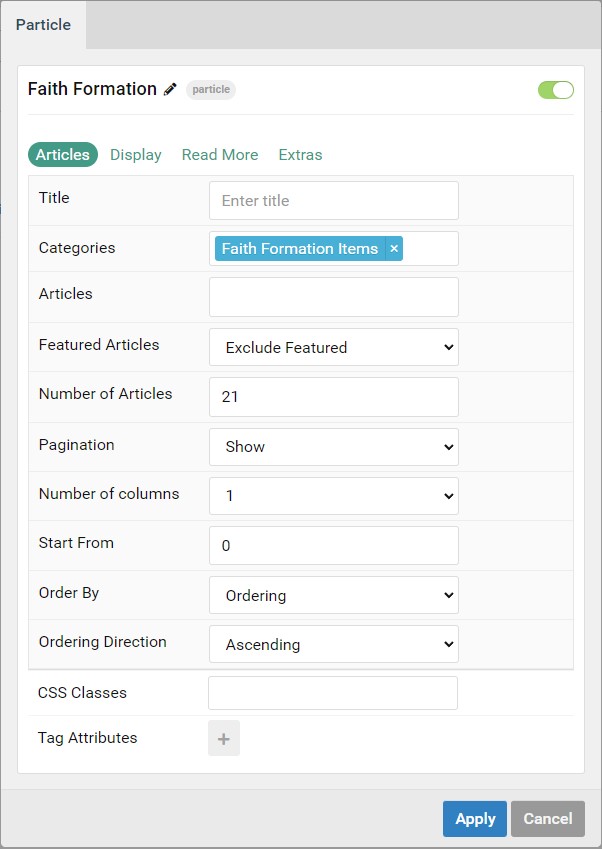
- Within the "Particle Settings" under the "Articles" tab place the Category that holds the Articles that you are wanting in the "Grid Layout" in this example the Category is "Faith Formation Items". The other settings should be as follows. The Number of Articles can be changed to what is needed per site.
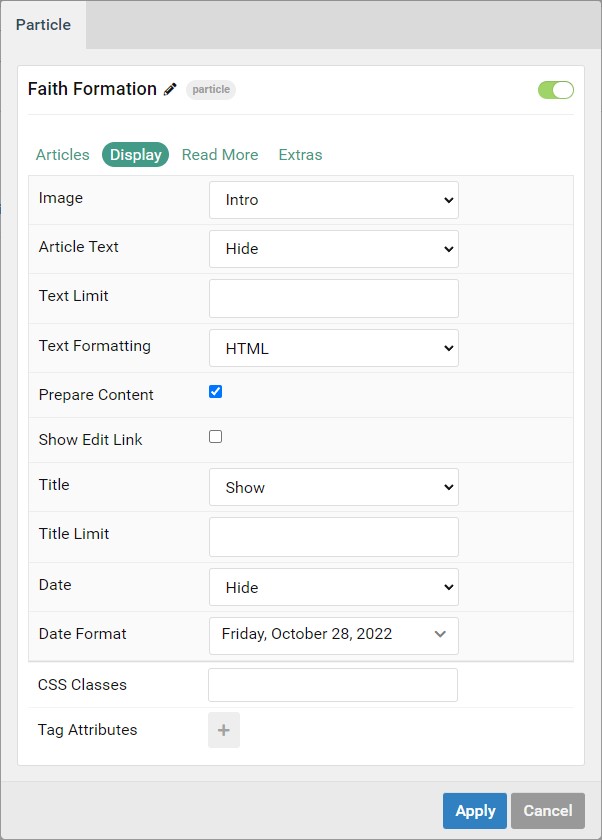
- Within the "Particle Settings" under the "Display" tab follow the settings here:
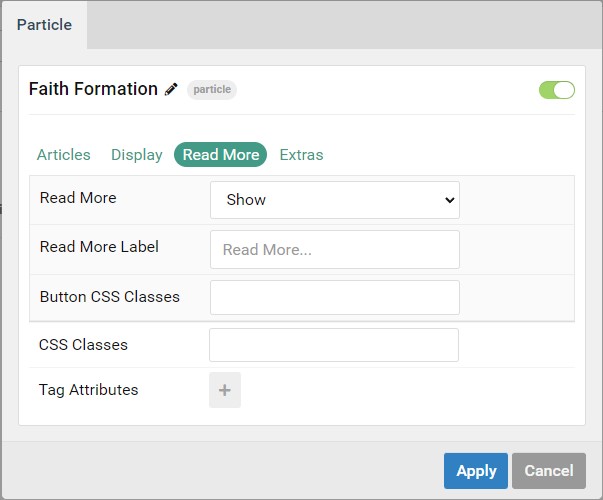
- Within the "Particle Settings" under the "Read More" tab follow the settings here:
- Within the "Particle Settings" under the "Extras" tab follow the settings here:
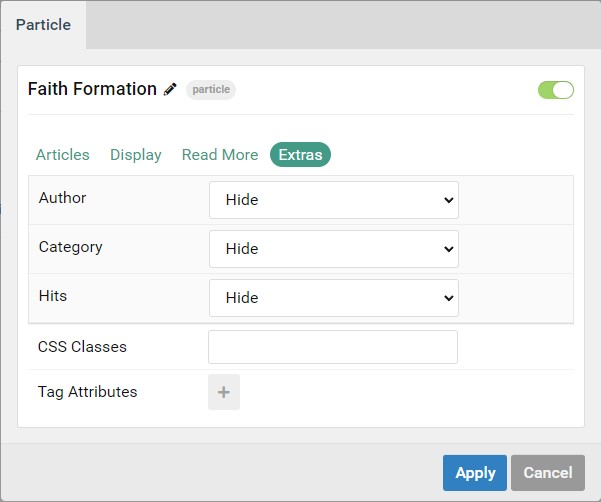
From here the "Joomla Articles" Grid Layout is complete. Repeat these steps for whichever pages need "Grid Layouts"
Creating the Side menu Module
1) From the Control Panel, go to Module Manager.
2) Click the green "New" button in the top left corner.
3) Select "Gantry 5 Particle: This module allows you to add particles to module positions).
4) Give the module the page name - Side menu (e.g. Get involved - Side Menu), change "Show title" to hide, and assign the position to be "SideBar A " under Clarity.
5) Click the grey "Pick a Particle" and select "Block Content". Hit the blue "Select". 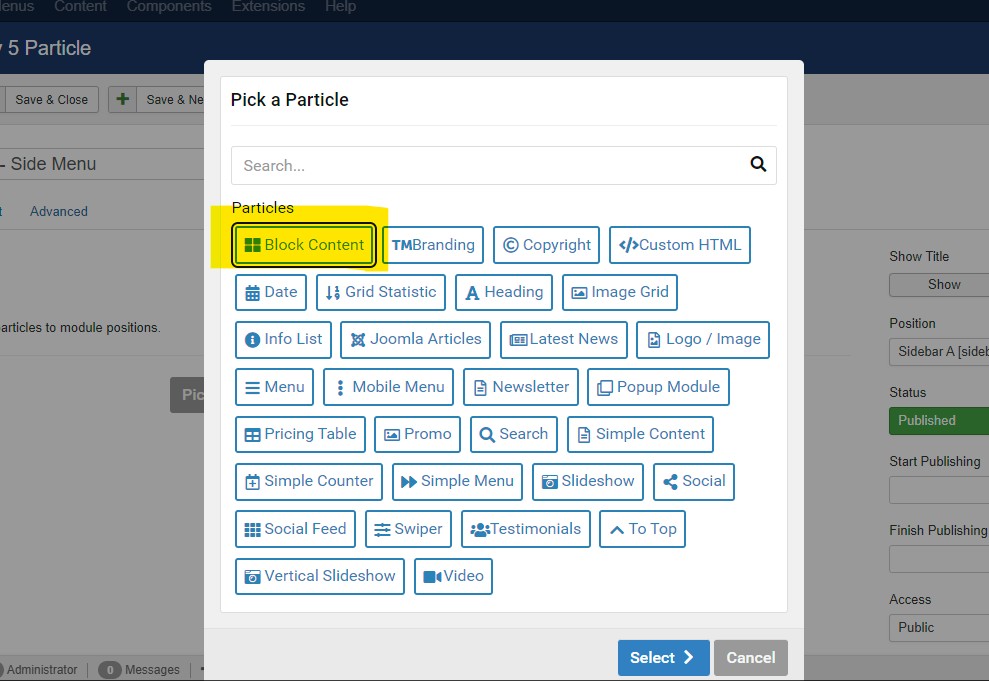
6) In the "Settings" tab, change the Content Source to "Joomla"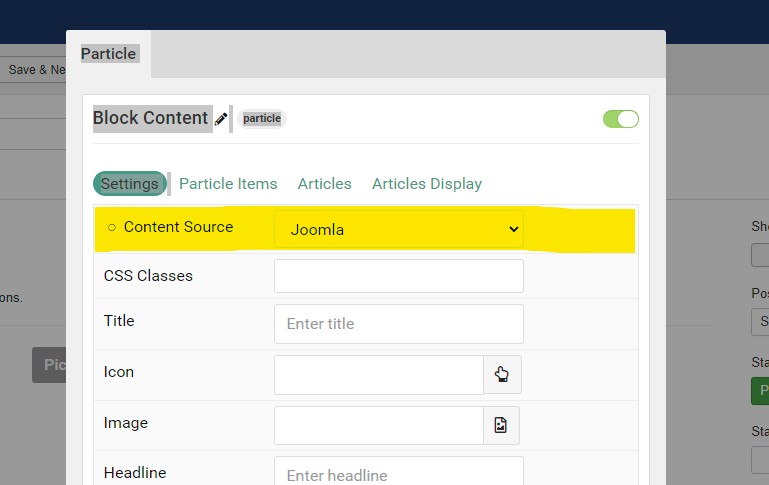
7) Skip to the "Articles" tab. Select your category, delete the information in "Number of Articles" section, change "Order by" to be Ordering.
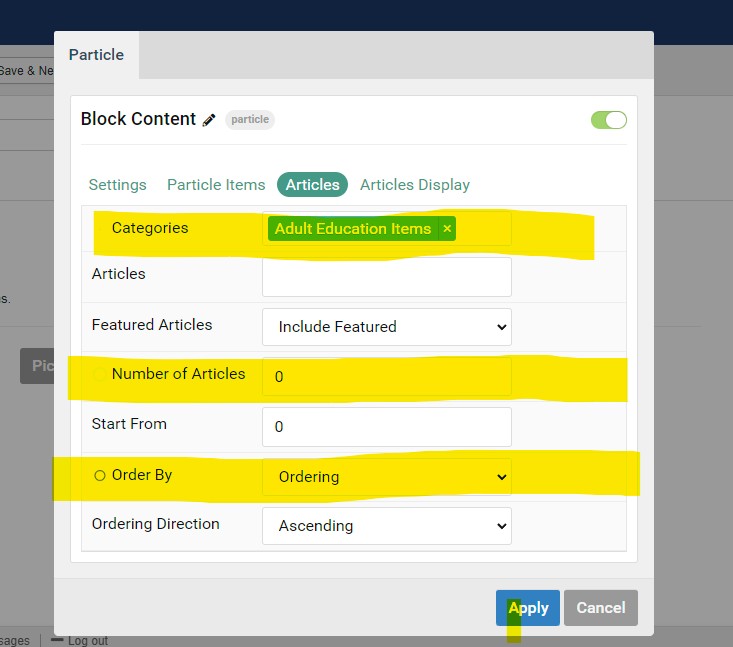
8) Jump to "Article Display" tab. Change the Image section to be "None", Title should be set to "Show", Article Text to "Hide". Hit blue "Apply button".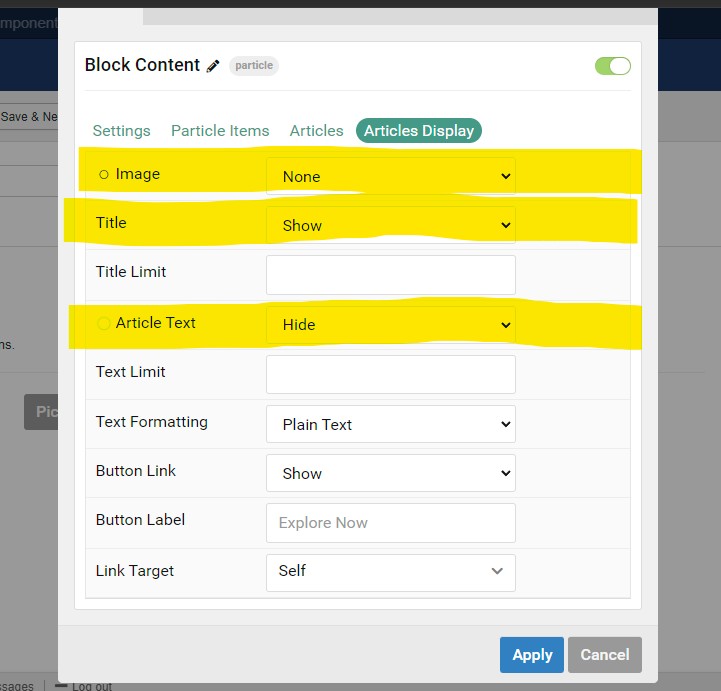
9) Select the Menu Assignment tab and change from On All pages to Only pages selected. Check the box of the correct menu item (this should be the category blog page).
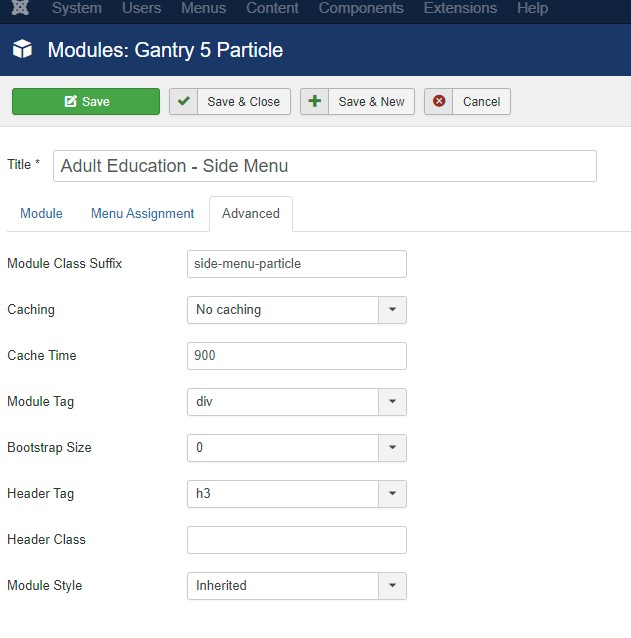
10) Select the Advance tab and add the following class to the Module Class Suffix.
Class: side-menu-particle
11) Save and close module.