


A couple of things to be cognizant of when transferring content from Trello and/or a client's old website to our new website. Remember to constantly check your work, this will save you a lot of time in the end.
Constancy
Little things like constancy make the website look cleaner and shows a higher level of professionalism for the client as well as Solutio.
Lack of constancy is generally seen when:
- Copied information does not have the formatting removed.
- We use different headings/ menu settings on the various pages. (I prefer using Heading 6 in most websites if I'm trying to differentiate between sections).
- Classes are not removed on all modules.
- Phone number and email formatting. (Don't have a number formatted like this (316) 227-1750 on one page and then 316.227.1750 on a different page.
- Phone numbers and emails are not all linked.
- Grids .
- External links target are not set to new window.
- We manually adjust tables instead of using classes.
- Ministry or staff images have not been resized.
Above are just a couple of examples; remember it's better to slow down and be thorough than just checking things off our list.
Coping and Pasting information to an article
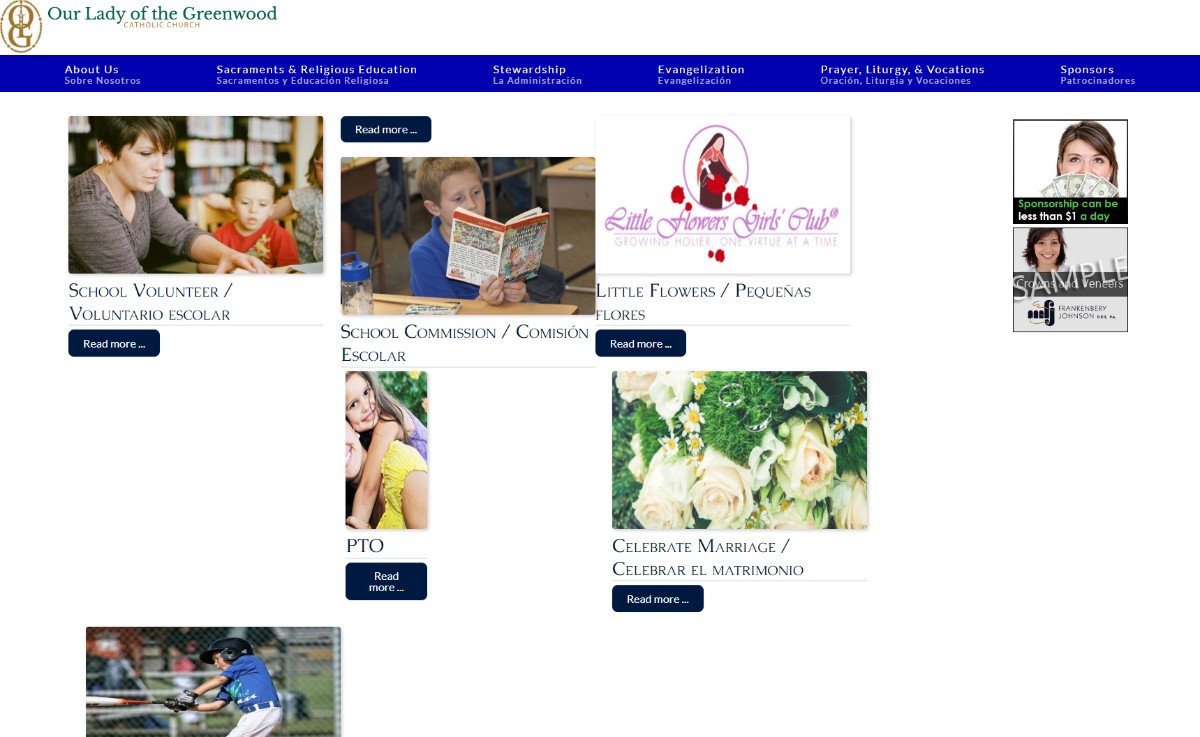
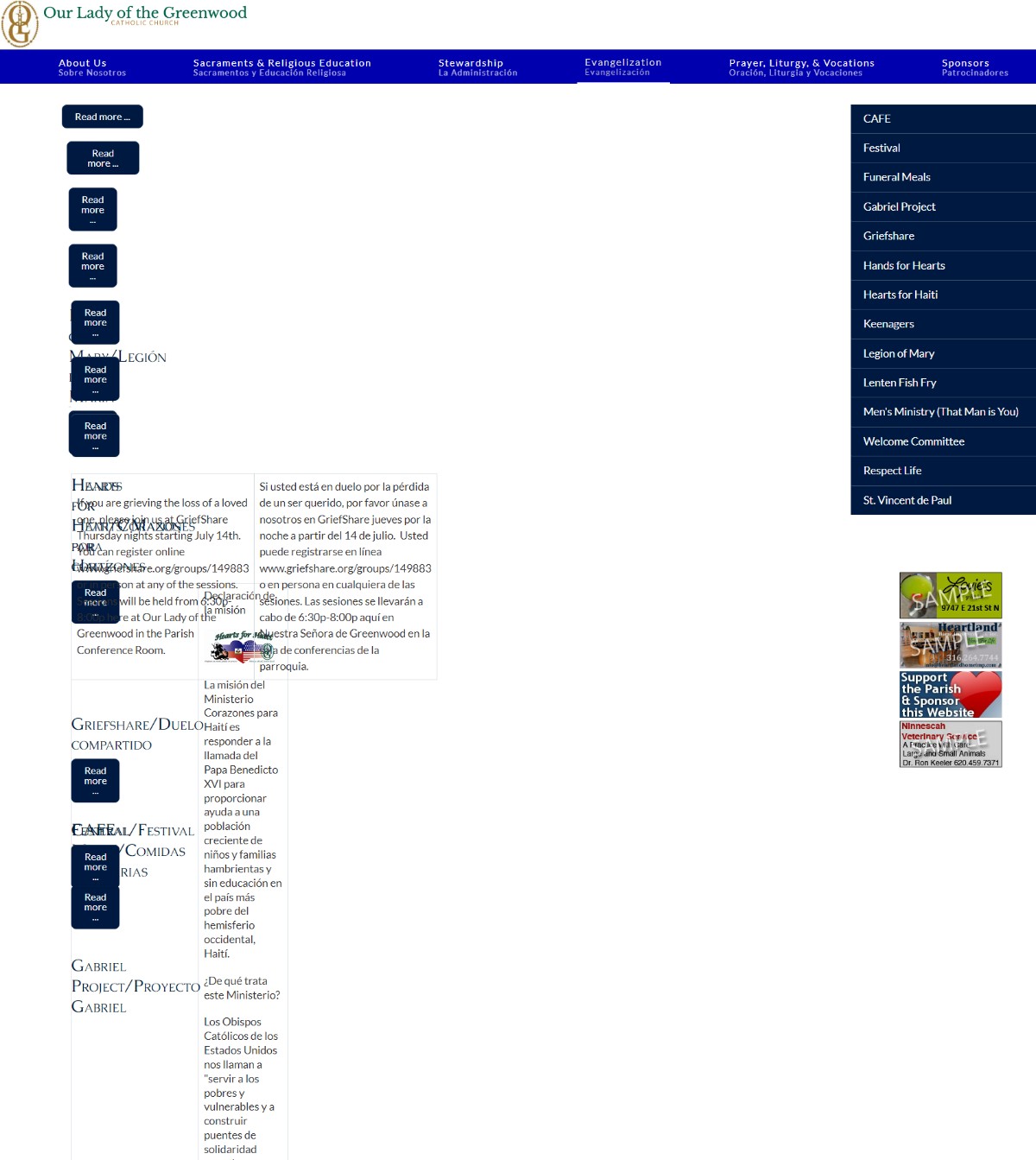
When pulling over content from a client's old site/Trello, you MUST remove formatting! If the website you are pulling from is more than just a colored background, you may need to check to make sure extra code wasn't added, e.g. <div>, <span>, <section>, <figure>, <wp>, or extra <class> tags aren't added. Having these extra tags can make the format of the page really wonky (especially on a ministry layout). See images below for visual reference.
| If you see these issues on a page it normally means tags weren't removed |
|
 |
 |
When pulling information over, highlight the text (hold "ctrl" and press "a" to select all text,) click the "clear formatting" button in the article toolbar. Every couple articles double check in toggle editor to make sure that the formatting is removed. Just because you "clear format" using the button, doesn't meant that all formatting has been removed.
Also when you are pulling information from a client's old site, please do not copy and paste any pictures and/or clipart from the website (unless the client expresses a desire for that picture/clipart). Same goes with information over 5 years (again, unless the client expresses that they want it on the new website).
Adding pictures to Articles
When adding pictures, make sure to upload the pictures to either the parish folder, template folder, or create a new folder in image manager. Try to keep it clean and organized so it's easy for the client to update the pictures if they want (this especially goes for ministry pages). We don't want to clutter up/have a disorganized image manager before the client even logs into the back end.
Pictures also need to be tastefully sprinkled throughout the site either in the articles themselves or as hero images.
Image Manager
If you create a new folder in image manager, avoid the following:
- Capital letters
- Special characters
- Spaces (use dashes instead)
- Limit the name to 40 characters
Sometime having one of the above will not allow the client to access the picture via the "image" button in the article toolbar. It can also disrupt the file path. When this happens, create a new folder under the same name, but without the above criteria.
Hero Images
Hero images are only used if the header is simple, or if the client requests them. Couple of things:
- All hero images are the same size: 1600x444px.
- Save the images to the hero's folder.
- Try use the client's pictures before stock (stock images can be found here. I am constantly adding/updating our selection).
- Try to not duplicate hero images on various pages. (Sometimes it is okay to use one hero image per main menu, especially with smaller websites/parishes).
- Make sure people's heads in the hero images are not chopped off in a weird way or that the image is too pixelated.
- Try not to use rotator images if possible.
- They can be various widths and have different opacity. (These changes are made in Cyberduck).
Hyperlinks
Internal Links: URLs that point to a different page on the same website (e.g. stmatthews.org/news ---> stmatthews.org/school)
External Links: URL that point to a page on a different website/domain (e.g. stmatthews.org ---> usccb.org )
Any of the following need to have the target open up in a "New Window":
- Documents .pdf, dox. doc. etc..
- External links
- Forms
- email address
Tables
If possible, use the "Insert Template" button on the article toolbar to add the desired table. Check the styles page to view the various tables. If you have to create the table from scratch, try not to manually adjust the cells width and height, try to use a class. Manually adjusting the table may look nice on desktop, but rarely will it look the same on mobile. Couple of refreshes on table html.
classes are added to the tables tag.
<table class="fancytable"
<tr> </tr> stands for Table Row (row)
<td></td> stands for Table Data (cell)
<th></th> stands for Table Header (colored cell)
When creating a table, be sure to check your work in mobile view before marking off as complete.