

Staff pages are now the same a grid pages, so use the https://styles.solutiosoftware.com/grid-creation-tool to set the classes
ALSO, SEE YEARBOOK STAFF PAGES -- it's the same instructions in a different place.
Staff pages will vary depending on the client's needs and preference. Below are the most common ways of creating a staff page.
Staff Layout
Spreadsheet: no special class or bio
Spreadsheet: div tag, teacherbox class
<div class="teacherbox">
<div style="text-align: center;"><a href="/XXXXXX"><img style="display: block; margin-left: auto; margin-right: auto;" src="https://dfpjao5r6vmsd.cloudfront.net/images/stories/staff/image-coming-soon.png" alt="" /></a></div>
<div style="text-align: center;"><p style="text-align: center;"><strong><a href="/XXXXX">Name of Person</a><a href="/XXX"><br /></a></strong><em>Grade or Title<br /></em><em>EXT. <br /></em><a href="mailto:EMAILADDRESS" target="_blank" rel="noopener noreferrer">EMAIL ADDRESS<br /></a><a class="button" href="/faculty-staff/ID"> Teacher's Bio</a></p></div>
</div>
<hr id="system-readmore" />
<p> </p>
Sometimes the client will prefer that the email address not be physically listed on the website, so you would replace the address with the word "email" and just hyperlink it to the email.
<a href="mailto:This email address is being protected from spambots. You need JavaScript enabled to view it." target="_blank" rel="noopener noreferrer">Email
Staff Table
Create a table and add the contact information. - Alternate Rows responsive is the table template
| Fr. John Smith | Pastor | xxx.xxx.xxxx | This email address is being protected from spambots. You need JavaScript enabled to view it. |
| Fr. John Johnson | Pastoral Vicar | xxx.xxx.xxxx | This email address is being protected from spambots. You need JavaScript enabled to view it. |
| Jane Doe | Receptionist | xxx.xxx.xxxx | This email address is being protected from spambots. You need JavaScript enabled to view it. |
<table class="alternaterowsm">
<tbody>
<tr>
<td><strong>Fr. John Smith</strong></td>
<td><em>Pastor </em></td>
<td><a href="tel:xxxxxxxxxx">xxx.xxx.xxxx</a></td>
<td><a href="mailto:This email address is being protected from spambots. You need JavaScript enabled to view it." target="_blank" rel="noopener noreferrer">This email address is being protected from spambots. You need JavaScript enabled to view it.</a></td>
</tr>
<tr>
<td><strong>Fr. John Johnson</strong></td>
<td><em>Pastoral Vicar </em></td>
<td><a href="tel:xxxxxxxxxx">xxx.xxx.xxxx </a></td>
<td><a href="mailto:This email address is being protected from spambots. You need JavaScript enabled to view it." target="_blank" rel="noopener noreferrer">This email address is being protected from spambots. You need JavaScript enabled to view it.</a></td>
</tr>
<tr>
<td><strong>Jane Doe</strong></td>
<td><em>Receptionist</em></td>
<td><a href="tel:xxxxxxxxxx">xxx.xxx.xxxx</a></td>
<td><a href="mailto:This email address is being protected from spambots. You need JavaScript enabled to view it." target="_blank" rel="noopener noreferrer">This email address is being protected from spambots. You need JavaScript enabled to view it.</a></td>
</tr>
</tbody>
</table>
Grade or Group Specific Staff Pages
These are not that common, and are generally only used for schools.
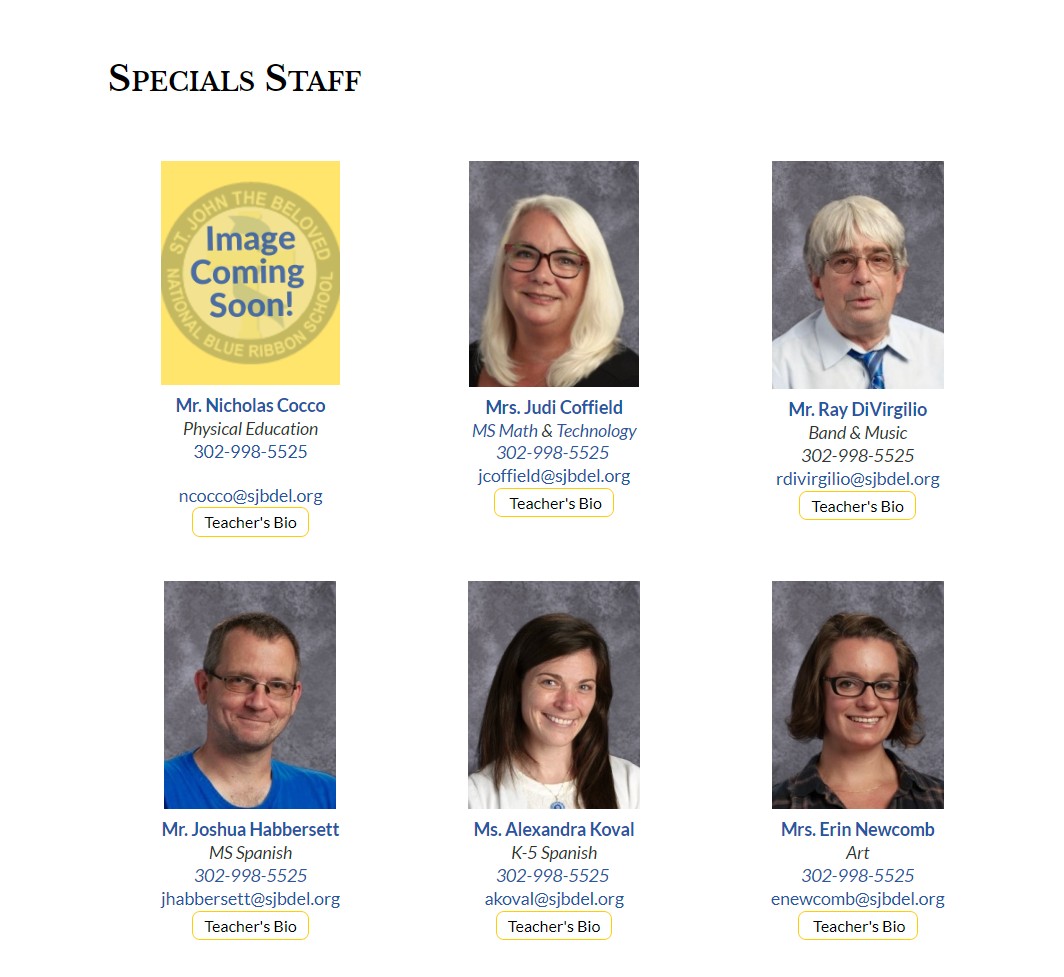
1. Create the staff articles using the instructions for the staff layout pages above.
2. Once the articles are created, go to module manager and create a new Strips RokSprocket (Content providers is "Joomla".) Hit the blue Continue button.
3. Set Joomla Content Filter Rules to Articles and Add the desired staff individuals.
4. See image below for general module settings : 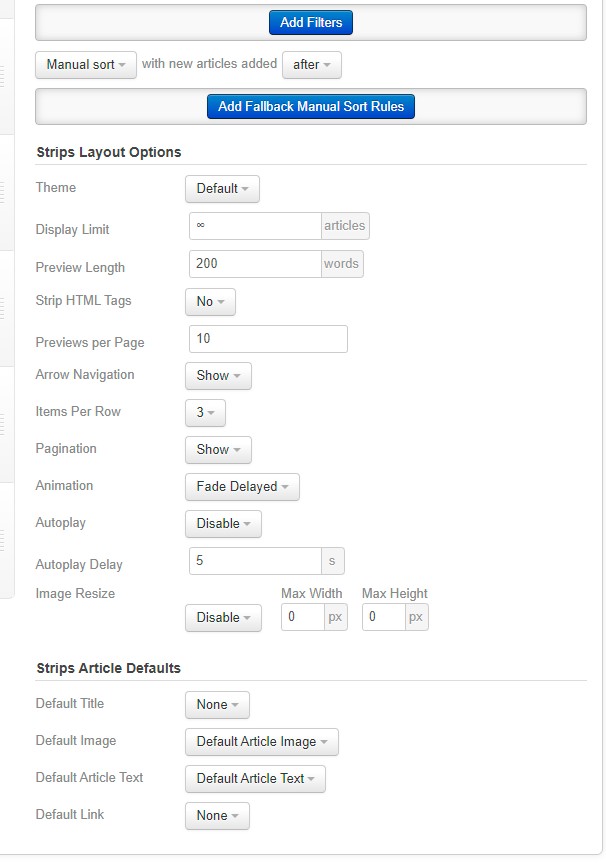
4. Set Module assignment to the page and correct position.
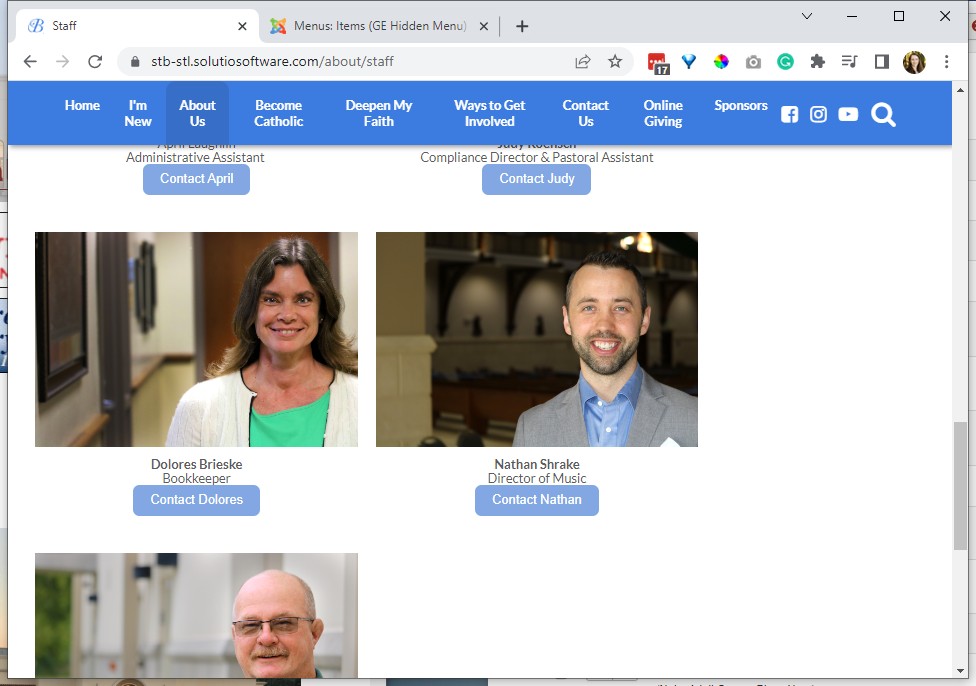
Staff - email links to contact form.
Example: https://stb-stl.solutiosoftware.com/about/staff
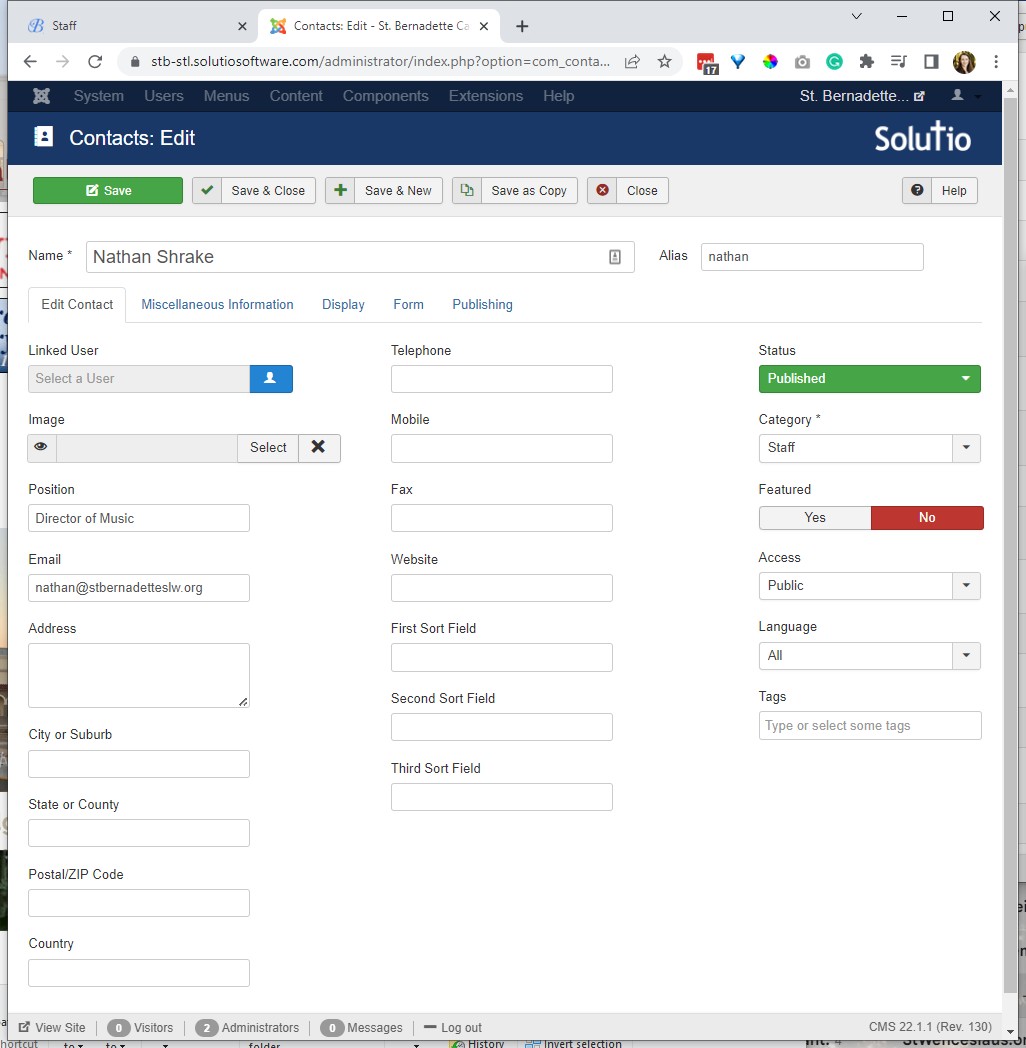
1. Create a category for staff in the Contacts manager
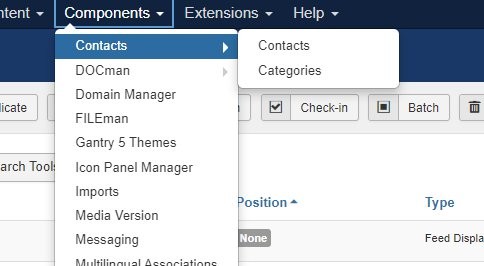
2. Create a contact for each staff member who has an email address
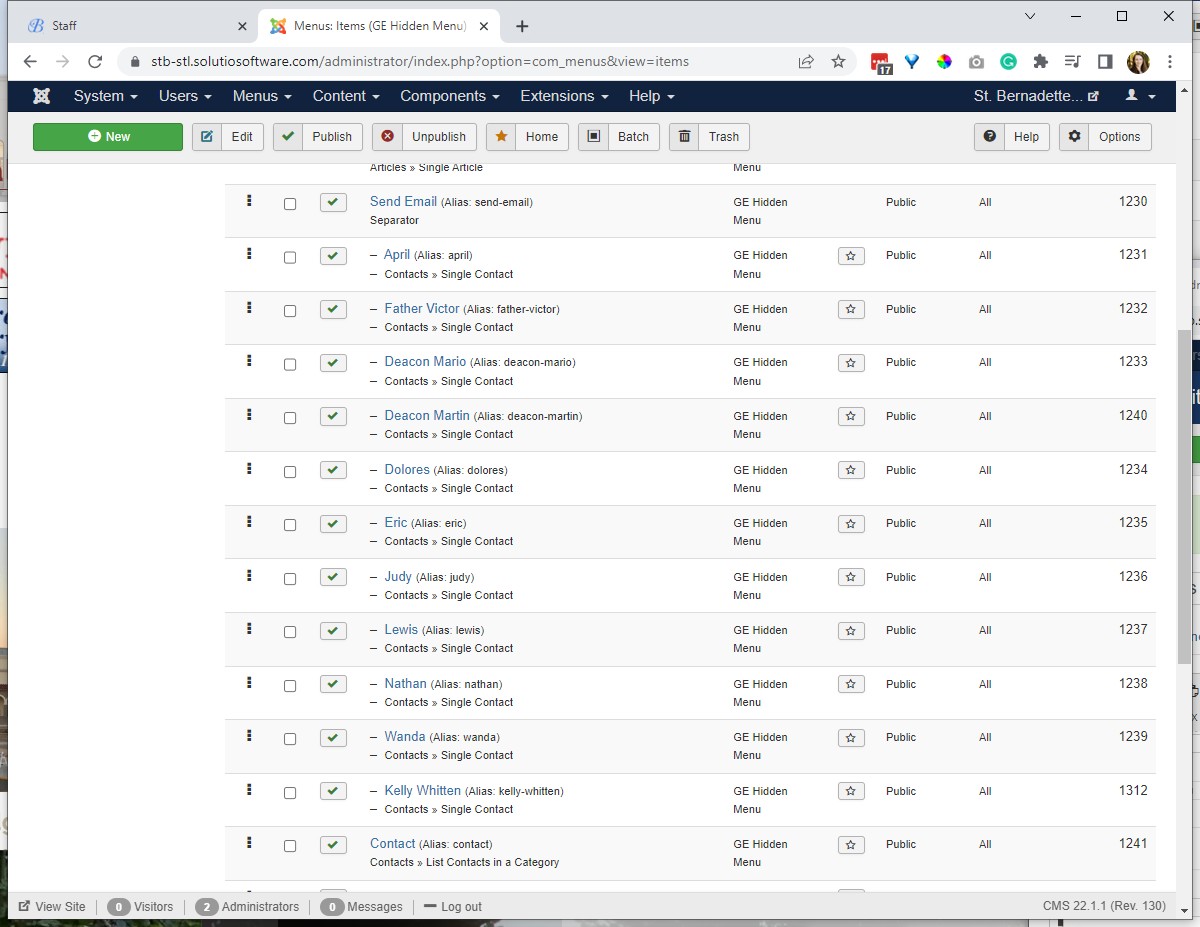
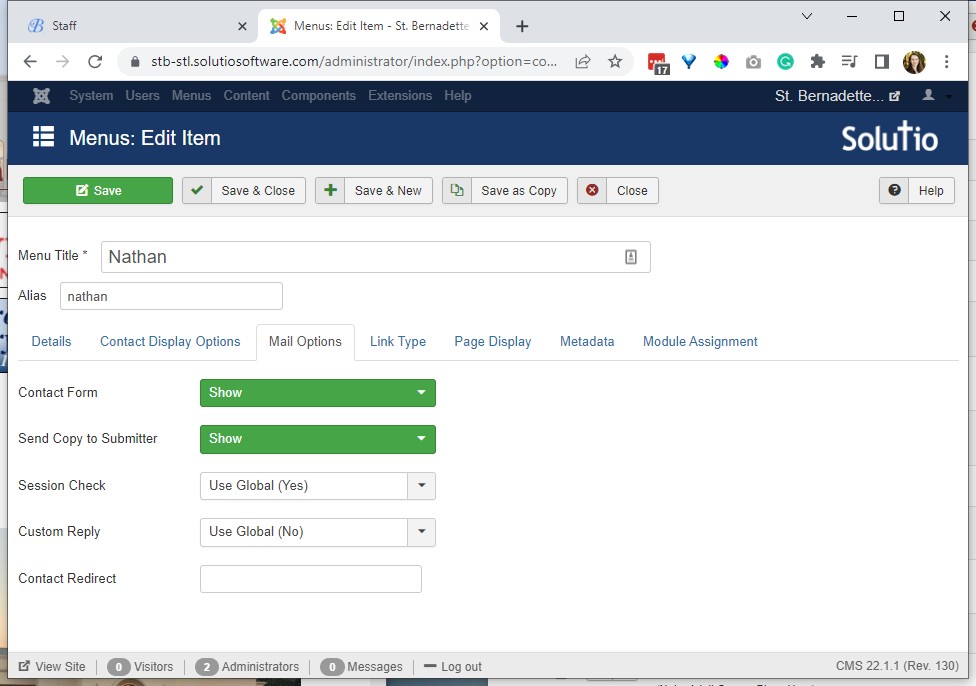
3. Create a single contact menu item for each contact created:
Make sure the form setting is set to display
4. Hyperlink the word email in each staff article to their respective contact form page: