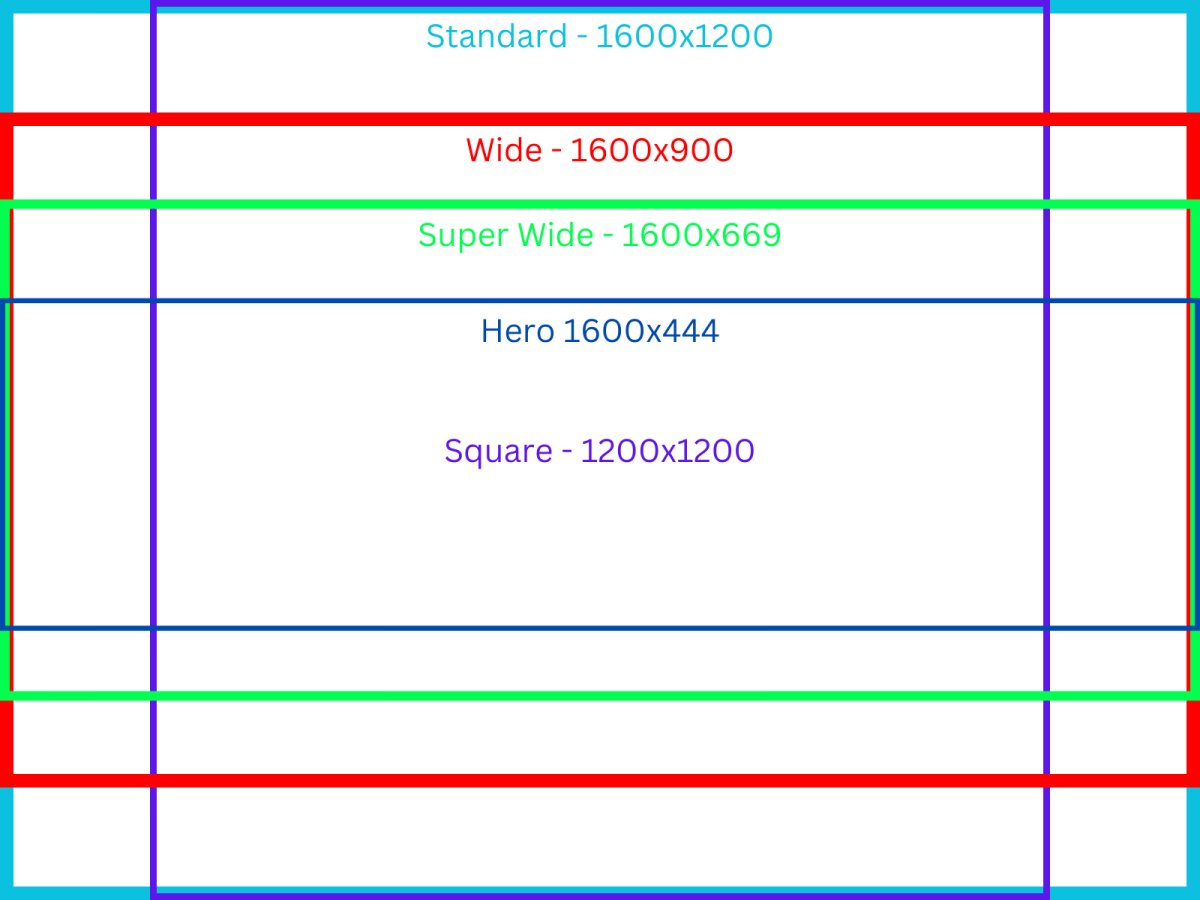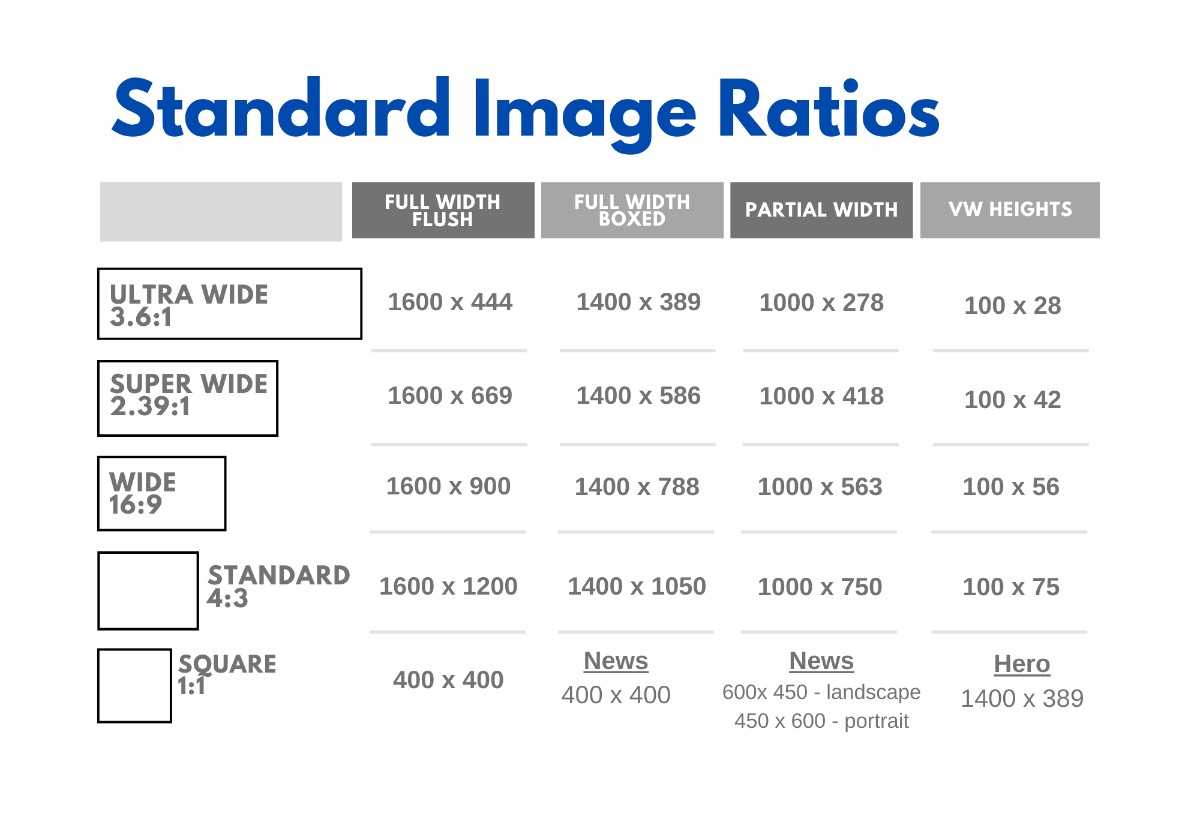

-
Articles

- Specialty Items
Various Widgets
- Details
- Tori Schippers

This is placed within a module
<p><iframe width="900" height="525" style="border: none;" src="https://createaclickablemap.com/map.php?&id=81106&maplocation=false&online=true"></iframe></p>
<script>// <![CDATA[
if (window.addEventListener){ window.addEventListener("message", function(event) { if(event.data.length >= 22) { if( event.data.substr(0, 22) == "__MM-LOCATION.REDIRECT") location = event.data.substr(22); } }, false); } else if (window.attachEvent){ window.attachEvent("message", function(event) { if( event.data.length >= 22) { if ( event.data.substr(0, 22) == "__MM-LOCATION.REDIRECT") location = event.data.substr(22); } }, false); }
// ]]></script>
Ministry platform widget setup
Option 1: Update the id name in the ministry platform system
The client would need to login to ministry platform and go to the configuration settings. In the configuration settings there are 5 settings that need the value updated. You can find them on their help page:
https://help.acst.com/en/ministryplatform/help-topics/widgets/widgets-release-notes/may-2025#widget-urls-0
Search for them in the configuration settings by "key name" and set the value of each one to "mpid". From there you should be able to add ministry platform widgets to any page as long as the head code is added to that page already.
Here is an example of the head code: (https://help.acst.com/en/ministryplatform/help-topics/widgets/enabling-widgets)
<script id="MPWidgets" src="https://stmmanhattan.ministryplatform.com//widgets/dist/MPWidgets.js"></script>
*This next process should work still but I would try the previous option first
Option 2:
Setting Up a Ministry Platform Widget
To integrate a ministry platform widget, all pages hosting the widget (except the homepage) must be nested under the /eventapp URL. This ensures proper functionality for event-related routes, such as:
- example.com/eventapp/checkout
- example.com/eventapp/details
- example.com/eventapp/events
For reference, see ticket: https://catholicwebsiteexperts.freshdesk.com/a/tickets/29196
Implementation Steps
1. Configure Menu Items and URLs
- Create new menu items for pages hosting the ministry platform widget (e.g., Events, Event Details).
- Ensure all widget-related pages are created under the /eventapp/ URL structure, e.g., /eventapp/example-page.
- Add a hidden menu item for /eventapp as the parent.
- Nest subpages (e.g., /eventapp/events) as menu items under the hidden /eventapp parent.
- If the client wants these pages in the main menu, create an additional "Menu Item Alias" type menu item that redirects to the corresponding hidden /eventapp page, preserving the /eventapp URL structure.
2. Share Updated URLs with the Client
- Provide the client with the new /eventapp-based URLs for their widget-related pages.
- Instruct them to update these URLs in their widget settings.
3. Obtain Widget Code from the Client
- Request that the client generates the ministry platform widget code and sends it to you.
4. Insert the Widget Code
- Use a "Raw Tags" module to embed the widget code on the appropriate page. Avoid pasting the code directly into an article, as TinyMCE may strip out custom HTML tags required by the widget.
- Position the module on the page using module positions or load it dynamically with the {loadmoduleid: 123} syntax (replace 123 with the actual module ID and remove the : ).
5. Verify Functionality
- Ask the client to review the implemented widget and confirm that it works as expected.
Acy Email Feature Setup
- Details
- Jackie Riddel
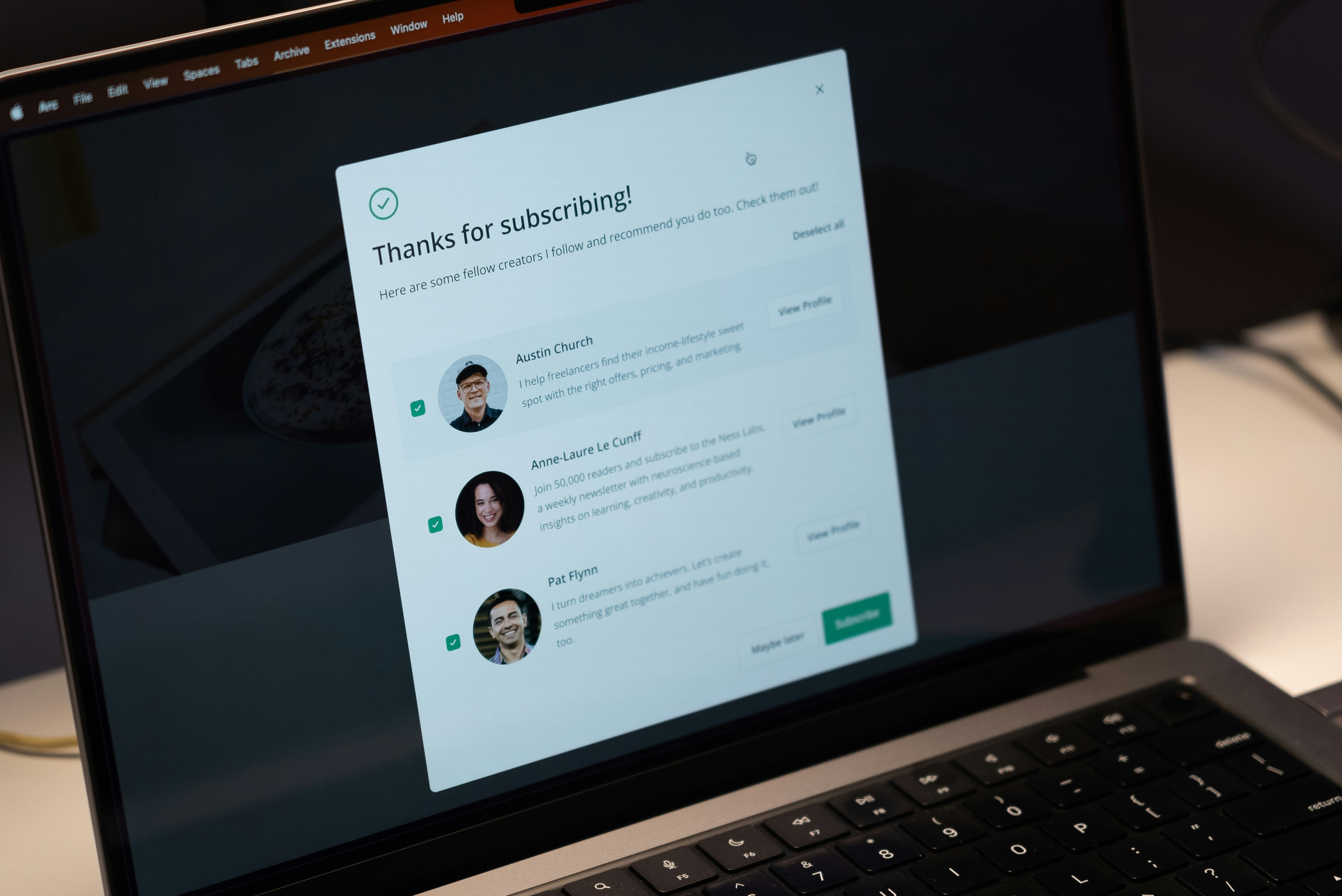
Add to existing set ups: "Want to advertise in these emails? Click here to learn more." (link to sponsorship options page for now)
9.19.24 -- We are so glad you are interested. We have closed our first round of launching emails and will add you to our list to be considered / included in our next round of integrations."
Default CSS to copy in:
#acym__wysid__template img { margin: auto; }
#dynamicContent0 .acymailing_content {    border-top: 10px solid #ddd; padding-top: 5px;}
.acym__wysid__column__element__td div { margin: auto;  display: block;  text-align: center;}
.acym__wysid__column__element__td div a { display: inline-block; }
You can also add in this to normalize the text in the stories if they are all over the board. It also removes additional images that are in the main body of the text.
.acydescription img { display: none; opacity: 0; height: 1px; width: 1px; }
#acym__wysid__template .acydescription p, #acym__wysid__template .acydescription h1, #acym__wysid__template .acydescription h2, #acym__wysid__template .acydescription h3, #acym__wysid__template .acydescription h4, #acym__wysid__template .acydescription h5, #acym__wysid__template .acydescription h6 { color: #000000 !important; font-family: Lato, sans-serif !important; font-size: 16px !important; text-align: left !important;  font-weight: 400 !important; font-style: normal !important; }
Default Images for Weekly Send and Prayer Line and Announcements


Ai Search
- Details
- Jeremy Meyer

Subpage Effects
- Details
- Tori Schippers

Backgrounds like TOR
Add to the CSS
/************ BACKGROUND ************/
.site-1-sub #g-page-surround { background: white url(../images/template/background.jpg) 0% 50% no-repeat; background-size: cover; background-attachment: fixed; }
.site-1-sub #g-container-main { margin: 0; padding: 0 10%; }
.site-1-sub #g-container-main {background: none; }
Upload an image in the respective file path such as one of the following:


How to fade image layers using Gimp gradient/blend tool
- Details
- Jackie Riddel

This post will explain how to do fading (fade out a layer) in Gimp.
Assuming you have an image open...
- Add a new layer
- Draw the part you want faded
- Right click on the layer in the Layers panel/window and select 'Add Layer Mask', then click on Add on the Add Layer Mask dialog (making sure the default value of 'White (full opacity)' is selected).
- Select the Blend/Gradient tool and set the Gradient to 'FG to GB(RGB)' .
- On the layer click and drag a line where you want the gradient (fade) to start and finish. The first click is where it will be faded out and the second click is where it will start to fade.
- Right click on the layer in the Layers panel/window and select 'Apply Layer Mask'.
That's it.
From
https://web.archive.org/web/20200304055345/http://geekswithblogs.net/TimH/archive/2009/03/10/how-to-fade-image-layers-using-gimp-gradientblend-tool.aspx
Image Ratio Sizes
- Details
- Tori Schippers