

-
Articles

- Training & Launching Items
Creating User Accounts
- Details
- Jackie Riddel

Users can be added manually or imported.
Use this spreadsheet to generate a user import .csv file: (usually used for new site trainings)
https://docs.google.com/spreadsheets/d/1xoP6LY6g8wRJZHgEGrNaa_CwJ4WGmQP0ybQ2PtvoL5E/edit#gid=0
The same spreadsheet can be used to generate a user import .csv file for email addresses.
Users are created in one of two groups, initially:
Basic Editor (or Manager) + a User Group specific to a category(ies) of articles
or
Admin
Registered might the default user group, but registered does not give a user access to the backend of the website.
Users should also be added to Email Lists Spreadsheet so Lori can input them into MailChimp.
If a user gets access to an entire category, that user group can be allowed all 6 settings:
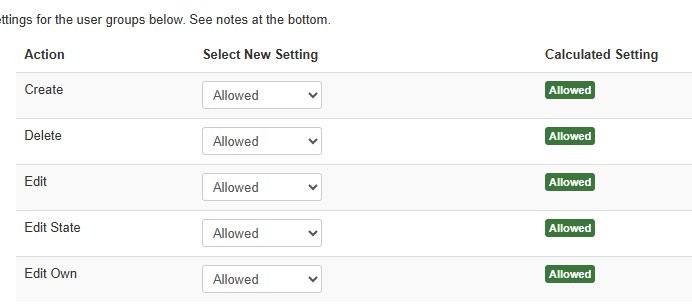
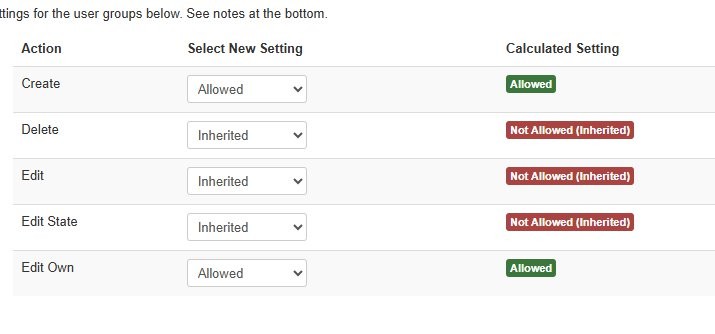
If a user gets access to only one or more articles in that category:
Then deny or allow access to each article in that category respectively.
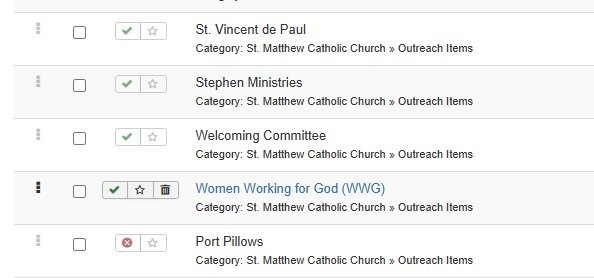
Then they should see other articles grayed out
How to create and set permissions for a user group
How to set up a registered section of the website
Jeremy's Domain Documentation
- Details
- Jeremy Meyer

Launching Websites
Switching the NS Records
When a client transfers their domain to our registrar we can switch their name servers to ours before launch. Once we confirm the existing DNS records on their domain and recreate them on our name servers we can send instructions to switch the nameservers to ours. Once the site is ready to launch Alex can make the DNS updates and initiate the transfer. This prevents issues related to domain registrars shutting down DNS when a transfer is completed before launch. This breaks stuff.
Here are the NS records for our registrar. (NameCheap)
ns10.dnsmadeeasy.com
ns11.dnsmadeeasy.com
Instructions for changing these vary based on who they use as their registrar. They are generally changed in a different place from the other DNS records.
Setting up the Domain Manager
For domains that the Client will be managing, we need to host the www domain and forward the apex to the www. For more context view this.
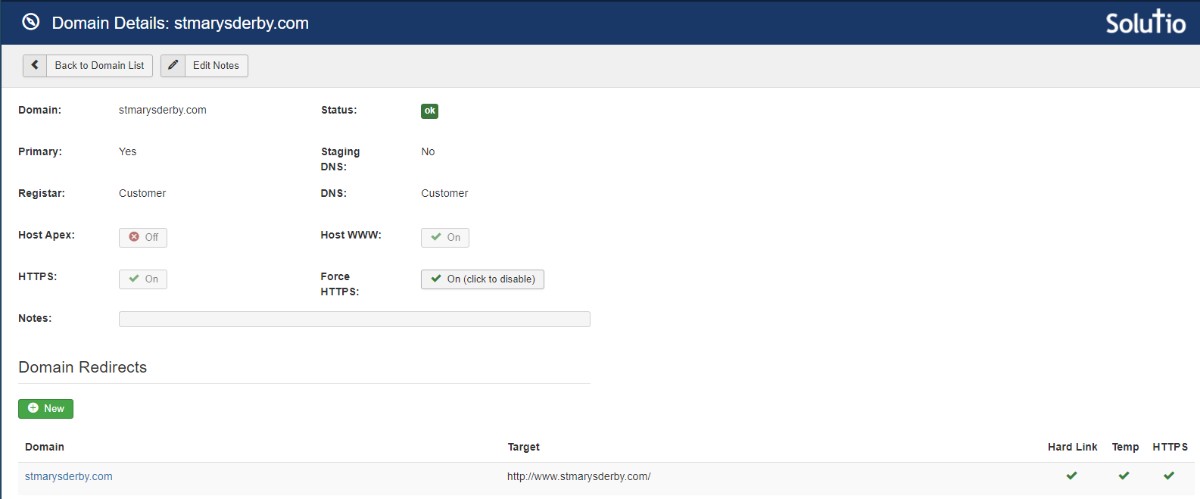
Here are the DNS changes that need to be made on the client's Registrar for each domain we will be connecting to the site. Make these DNS changes only for domains that will be hosting a site. i.e. the primary domain and any secondary domains that will host a site such as a school domain.
remove the www A record
create a CNAME record on the www subdomain (www.example.net)
value: SITE-CODE.w.solutiosoftware.
update the A record on the base domain (BASEDOMAIN.COM)
current value: XX.XX.XX.XX
new value: 54.83.55.79
If the domain just needs to forward all its traffic to a different domain then we need to point both records to our redirect server.
Update the www A record
create/update an A record on the www subdomain (www.example.net)
value: 54.83.55.79
update the A record on the base domain (BASEDOMAIN.COM)
current value: XX.XX.XX.XX
new value: 54.83.55.79
Note: if a record asks for a hostname or host you can insert a @ symbol to represent the apex or insert a www for the www CNAME record.
Be sure to update the site code and do a DNS Lookup to find out the current value of the A record.
Sometimes a client will have multiple A records. Be sure to either forward each A record to the new IP or delete unneeded A records. This will depend on the situation.
EXAMPLE of a sub domain like school.example.com
stjoe-shawnee
https://school.stjoeshawnee.org/school
Full Domain Redirects
When a domain is registered with our registrar and the domain is redirected to a different domain Alex will set it up to use the launch button. This will make the necessary DNS changes to get the domain working.

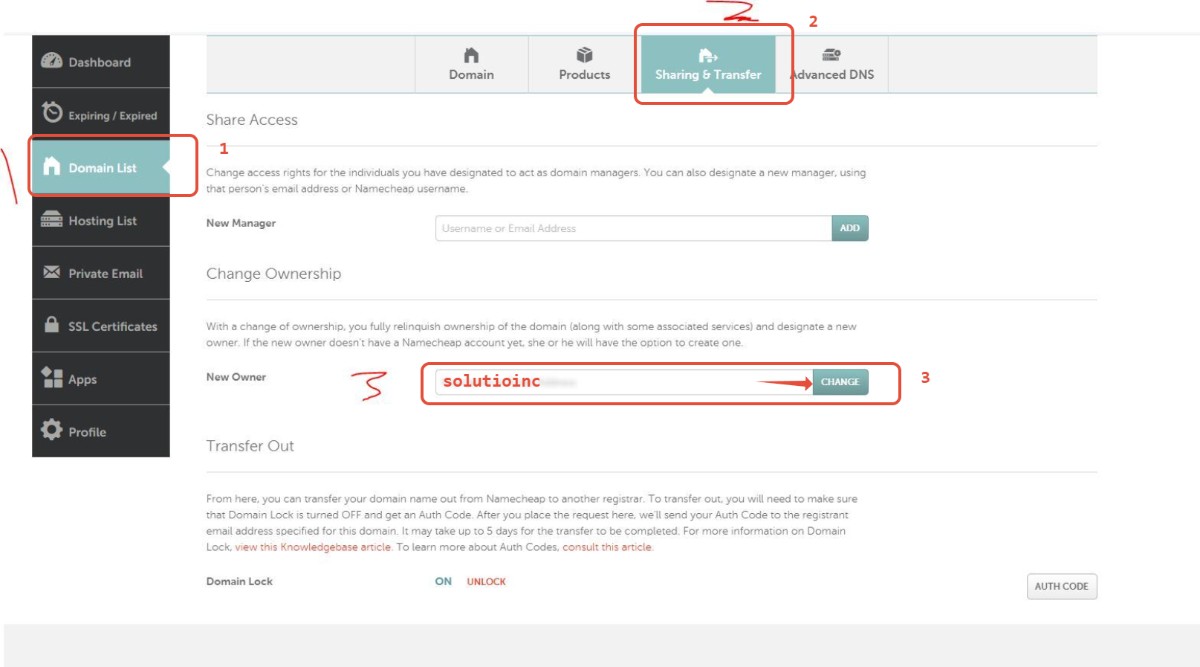
NameCheap Transfer Instructions:
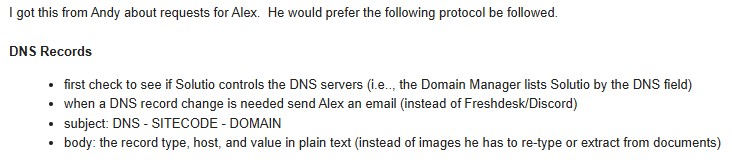
Email Protocol for sending DNS changes to Alex
Pre-Training Audit
- Details
- Tori Schippers

- Get Comfy and just browse the website from phone (3-4 minutes)
-Look at the website through your phone. Make note of anything that seems off. - Check Home Page & Subpage Links
-External links should open in a new tab (this includes social media, rss feeds, documents, and emails, etc. ). Footer and phone numbers should also link. - Check Canva Link that is the right Rotator Size
-Except on rare occasions, there should be no more than four Canva links on the Control Panel. Make sure the icon displays the correct size and text. Also make sure the link to Canva is correct. - Check Error Page (No Template Logo) - looks acceptable, header and footer appear
- Menu dropdown width set - does not text wrap to a second line
-While there is not a width limit within the backend, we try not to go above (350px) in Gantry5. - Pictures sprinkled throughout
- If you are not using hero or grids, pictures should be within the article the subpages. - Check Side Menus active on most pages
- Side menus will not be displayed on Calendar, Home, or grid pages. - Try to break the rotator and headlines with image of different dimensions
- Docman modules open PDF in a new tab (edited in module)
- Add headlines to make sure default image functions
- Parish Registration Google form description or subtext says correct parish name
- Check the time zone on the site and add email address if needed (Site Config button on control panel) (general email/usually in the footer)
- Check up on ADA Compliance (adding Alt tags)
- Upload Default Images
- Make sure Google Calendar is in correct timezone #2
- Alert is not hidden by the menu
- Alert Read More is hidden
-- Update Alert from Preview Site to Amazing Feature MessageAmazing Alert Feature!
<p>Stay informed with real-time website alerts! Our alert system notifies you of important updates, upcoming events, and new resources as soon as they’re posted. Look for pop-up banners or notification icons to stay up to date.</p> - editor.css font types match the site
- Headlines or Latest News - category name matches module title
- alert module is published
- check site with alert on on mobile view
- social media icons change color on hover, a color that matches the site
- Trash unnecessary Categories, Check that Category Order is correct: News>Rotator>Alert>Grid Categories Alphabetical>Page Content>Homepage Articles>Other DO NOT DELETE>Preview
- Do the style article colors and fonts match the site?
- reCAPTCHA is enabled
- Check / update default-news image
- Check / update default grid image
Launching Checklist
- Details
- Tori Schippers

Post-Launch Audit
- Details
- Tori Schippers

Training Schedule & Checklists
- Details
- Tori Schippers

As far as a on-site training schedules, it generally looks like this:
Trainer will arrive shortly before 9:00am to get setup
- 9:00am - Basic Training Starts
- Noon - Break for lunch
- 1:00pm - Advanced Training (calendar, menus, advanced topics and other questions)
- 3:00-4:00pm - Training Ends
Schedule is a little flexible, but check with the trainer first!
Checklists
Here is the training checklist to take on trainings to make sure all of the basics are covered in the following: