


To make the pop up work add an article into the 'pop up' category. The pop up will display after 3 seconds on the homepage up to 50 times each week by default. The cookies that track how many times a user has visited will expire after 7 days. i.e. the pop up will begin to show up again (if the visit count had been reached) after the 7 days.
It is possible to change the visit limit, expiration time, and the delay.
The pop up works by using javascript to detect if there is a published article in the pop up category. It also uses custom HTML in a particle on the home outline to display a module with some css applied to it. The module is used to inject the pop up category of articles into the custom HTML. The javascript also sets cookies to keep track of how many times a user sees the pop up.
(The screenshots in this guide are not updated to match the updated code)
To add a pop up to a website:
1. Create a pop up category
The javascript will search this category for any published article and then display its content on the website.
2. Add the javascript to the home outline in gantry
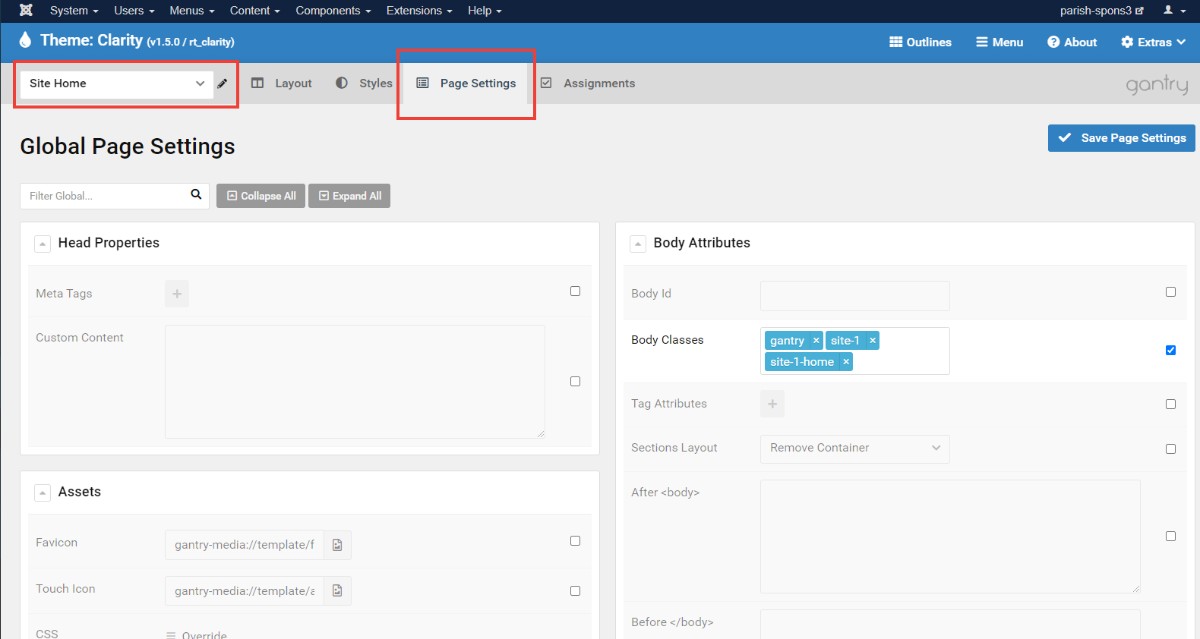
Scroll down to the Javascript and add the showPopup2(): function
showPopup2();
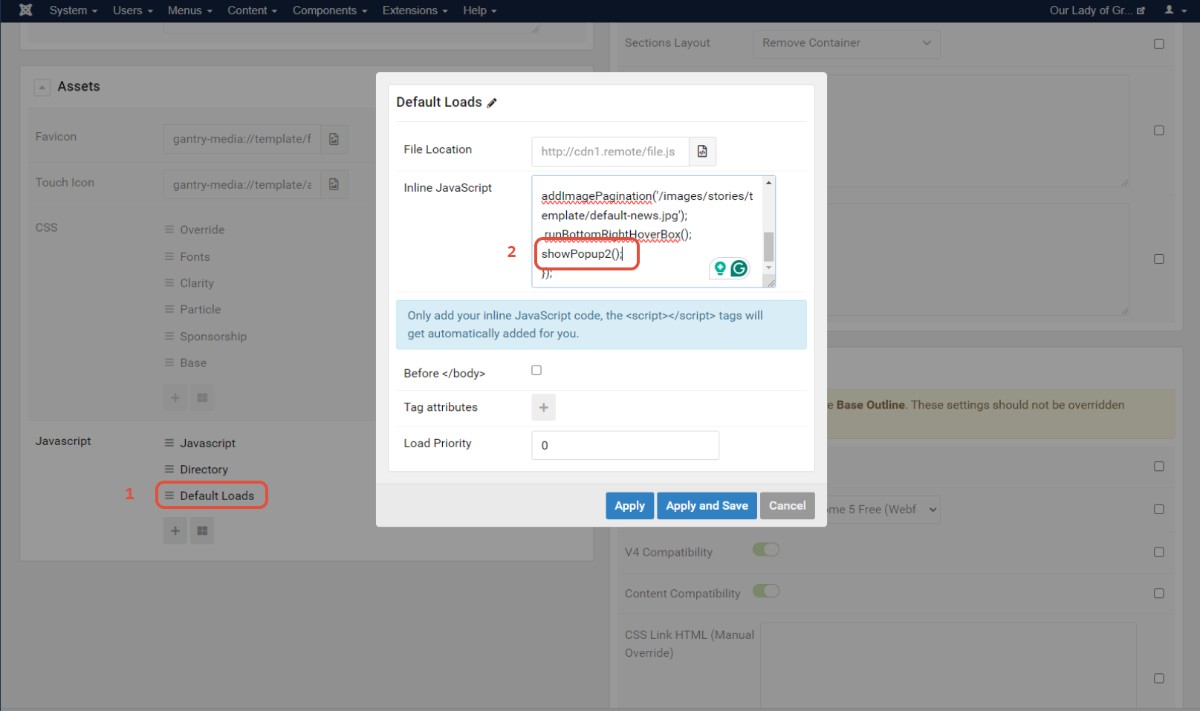
You can change the delay here by passing in 3 attributes in the function's parentheses.
You can change these 3 variables
- The number of times a person has to visit before the pop up won't show anymore
- The number of days it takes for the pop up to show again after the visit count is reached
- and the Delay in milliseconds before the popup appears on the website.
Here is an example:
showPopup2(5, 30, 5000);
This function when added to the javascript will set the popup to appear up to 5 times per user every 30 days. The popup will show after a delay of 5000ms.
You must 'pass' the variables in order.
3. Once the Javascript is added a custom particle needs to be added to the top section
Here is the code for that particle:
<div id="pop-up-overlay-2"></div>
<div id="pop-up-container-2">
<div id="popup-2">
<jdoc:include type="modules" name="pop-up" />
</div>
<button id="close-popup-button-2"><i class="fas fa-times-circle"></i></button>
</div>
This bit of code loads a module into the spot where this HTML is located:
<jdoc:include type="modules" name="pop-up" />
The name attribute needs to be set to the module position of the pop up module which we also need to create. A custom position can be made in the module to match this code.
4. To hide the pop up when there is not a published article we need to add a class to the block section of the custom css particle
pop-up-block-2
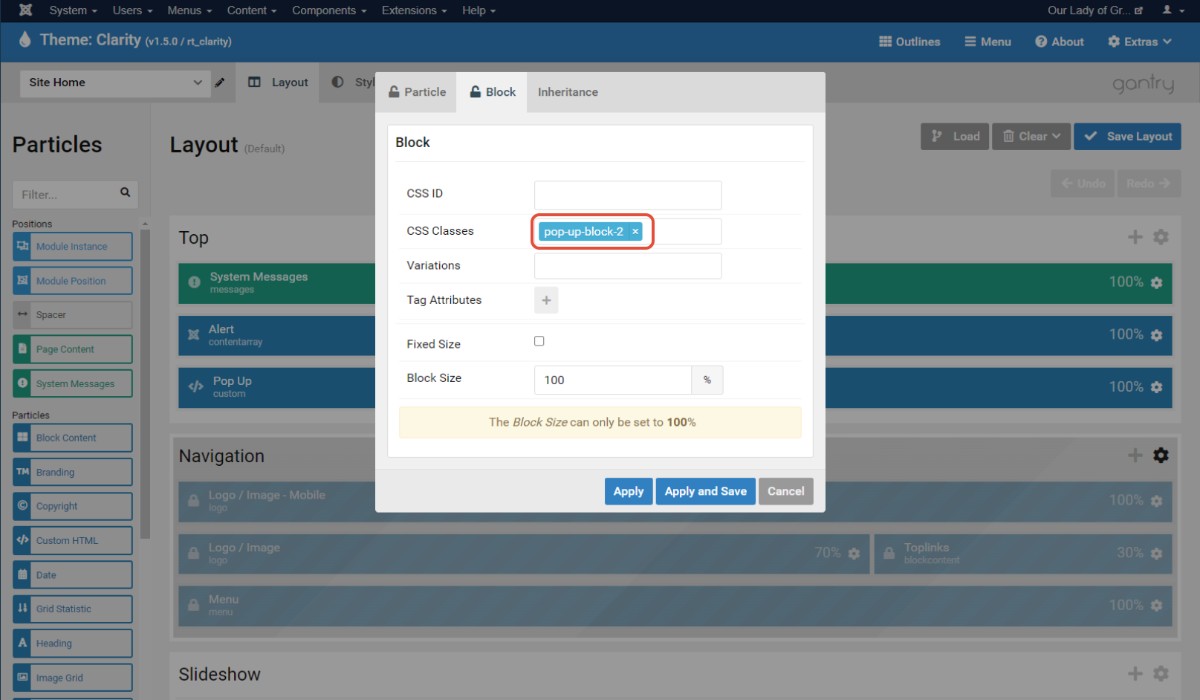
5. Create the module to display the pop up category
The module type is 'place here'
Set the module to display a category
put in the category id for the pop up category which is found in the category manager
set the module position to 'pop-up'. This will be a new module position and should match the name attribute in the <jdoc> tag from earlier
set the first 5 radio buttons to 'no'
article order should be ascending
The module should be set to display on all pages, or at least the home menu item.
Once all of that is created publish an article in the pop up category and see if it works. The pop up will only show up 30 times each week before you have to clear your cookies for the website.
To clear your cookies:
open up the google inspector
go to the application tab
On the left-hand side, under the storage section, under the cookies folder, select the url
from there select the visit count cookies and delete them
You can also clear cookies through the browser settings.
Finished....